Window 11 Secret Tricks
Since the Microsoft released Windows 11, there are a number of cool hidden features, which are listed below. These features will make Window 11 a comfort window for you and will assist you in adjusting to the new window 11 environment.
1.Secret Star menu in window 11
Right-click on the Start Menu icon on the Taskbar. A very different menu shows up this menu help you to use quick tools like task manager faster and many other tools

2.Shutdown Background apps
If you're running out of battery, you can turn off the background app. These apps deliver notifications, updates, and can receive information even when you aren't using them. While this is useful, it consumes battery power.
By navigating to Power & Battery under System under Settings, you may adjust and monitor these apps. After that, go to Battery Saver and turn off notifications and background activity.
3.Focus Assist
Focus Assist is a feature in Windows 11 that provides several tools to help you stay focused. Start by going to Settings and then System and selecting Focus Assist from the drop-down menu. Then you may choose whether you want no notifications, only alerts, or the list you prioritized.

There is also the setting for automatically putting this feature in place at particular times, like when using an app in full-screen mode.
There is also the setting for automatically putting this feature in place at particular times, like when using an app in full-screen mode.
4.Touch Gestures
If you have a laptop , touch gestures are some of the coolest tricks you can employ on Windows 11. Some of these new touch motions require the use of multiple fingers. Here are a few examples of touch gestures:
To access the Widgets panel, swipe in from the left.
To open notifications, swipe in from the right.
To open the running windows, swipe three fingers up.
To access the Task View, swipe up on the screen using four fingers.
To minimize an app and display the desktop, swipe three fingers down.
5.Snap Window
When you hover your cursor over the Maximize/Resize button in Windows 11, you'll see a snapping template. Select your desired template for the current window, and then snap the rest of the windows to it.
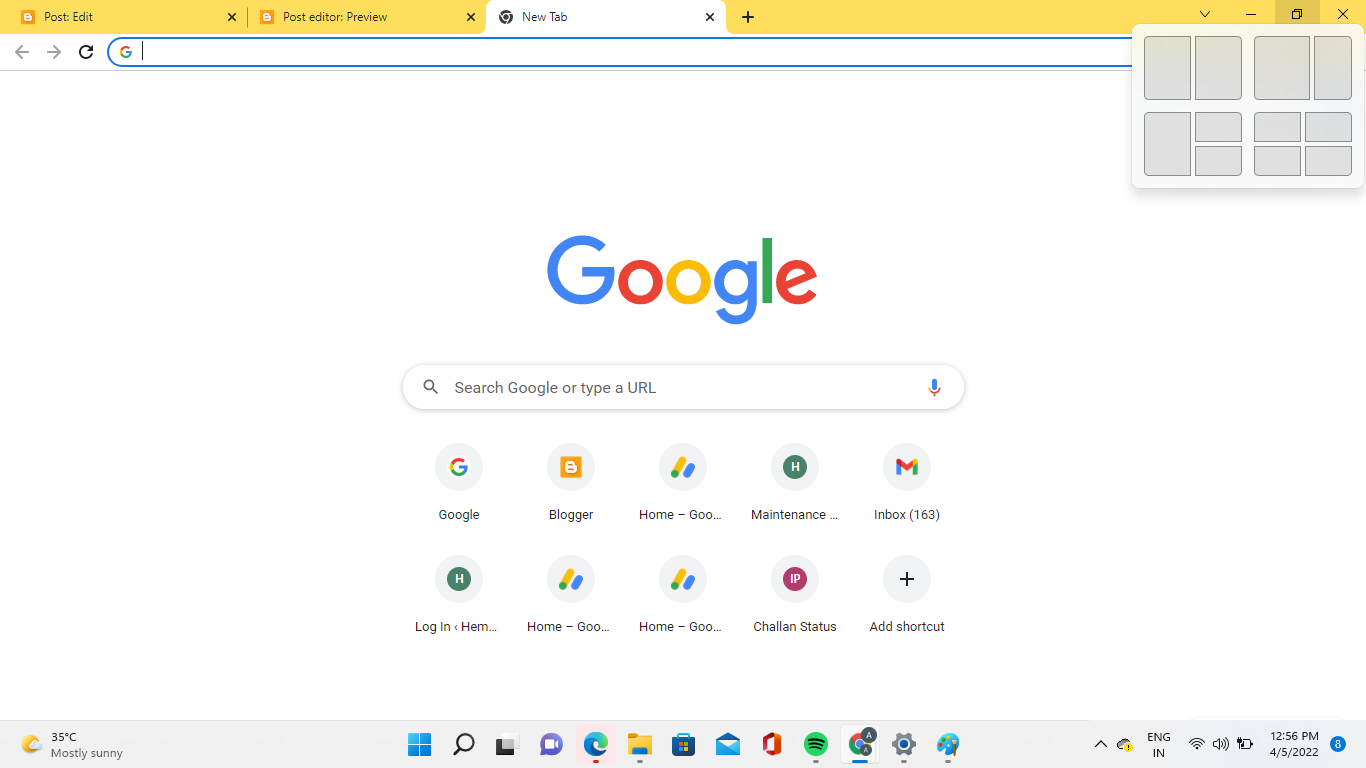
1. Select the desired layout on which you want to work
 2. Then Customize it your way
"Customize and Be Productive with These Windows 11 Tips and Tricks"When you hover your cursor over the Maximize/Resize button in Windows 11, you'll see a snapping template. Select your desired template for the current window, and then snap the rest of the windows to it.
1. Select the desired layout on which you want to work
2. Then Customize it your way
These tips will make it easy for you to work on window 11 and will help you to adopt new window 11 environment
Wow, amazing block structure! How long
ReplyDeleteHave you written a blog before? Working on a blog seems easy.
The overview of your website is pretty good, not to mention what it does.
In the content!
SuperCopier Crack
AnyDesk Crack
Macdrive Pro Crack
Alien Skin Blow Up Crack